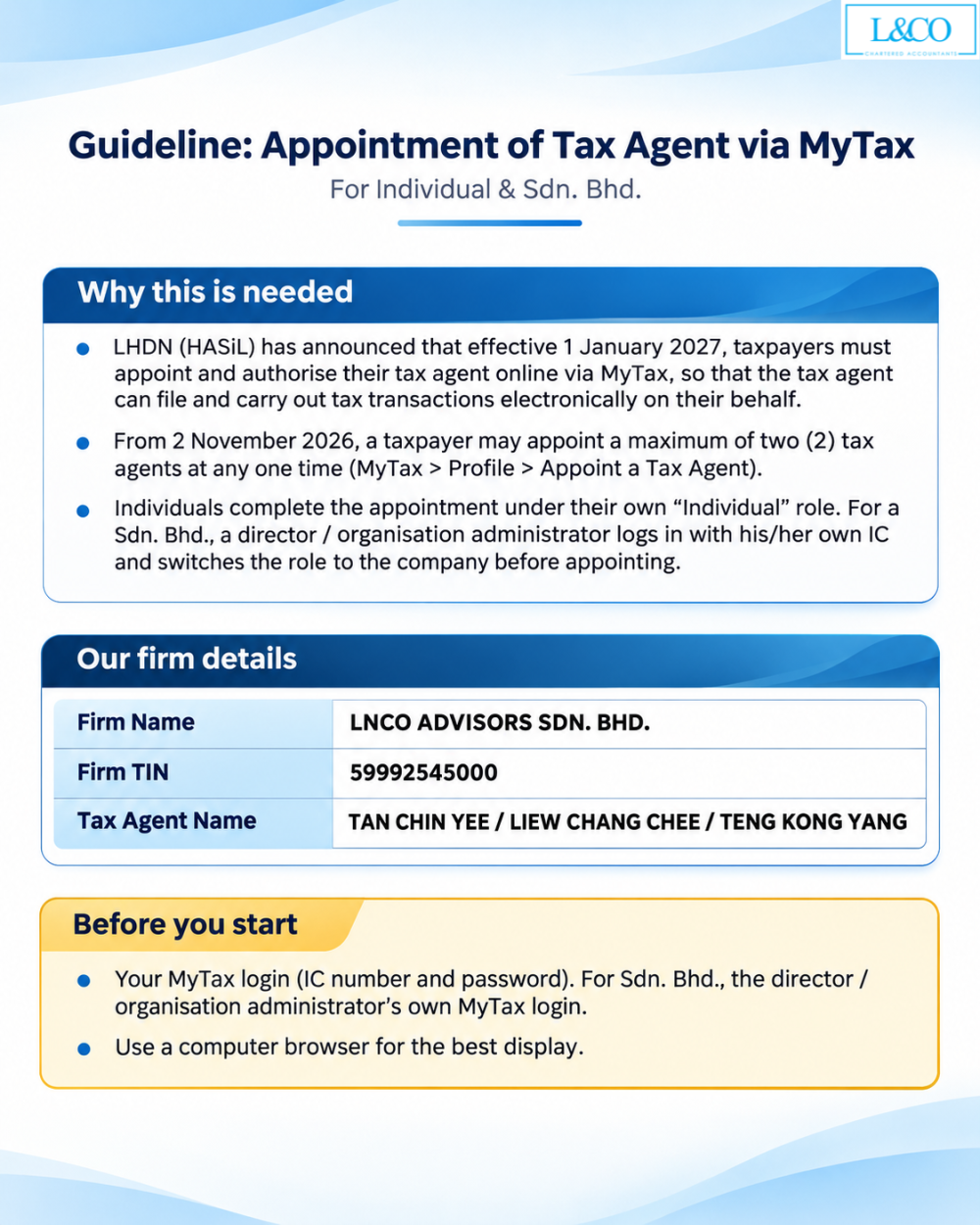
Starting 1 January 2027, the Inland Revenue Board of Malaysia (LHDN / HASiL) will require taxpayers to appoint and authorise their tax agents electronically through the MyTax portal. This authorisation enables appointed tax agents to submit tax returns electronically and manage relevant tax matters on behalf of taxpayers.
Additionally, effective 2 November 2026, each taxpayer is allowed to appoint a maximum of two (2) tax agents at any one time.
Whether you are an individual taxpayer or a private limited company (Sdn. Bhd.), this guide explains the steps to appoint L&Co’s designated tax agent through MyTax.
Part A: Individual Taxpayers
Individual taxpayers can appoint a tax agent directly through their personal MyTax account.
Follow the steps below to complete the appointment process.
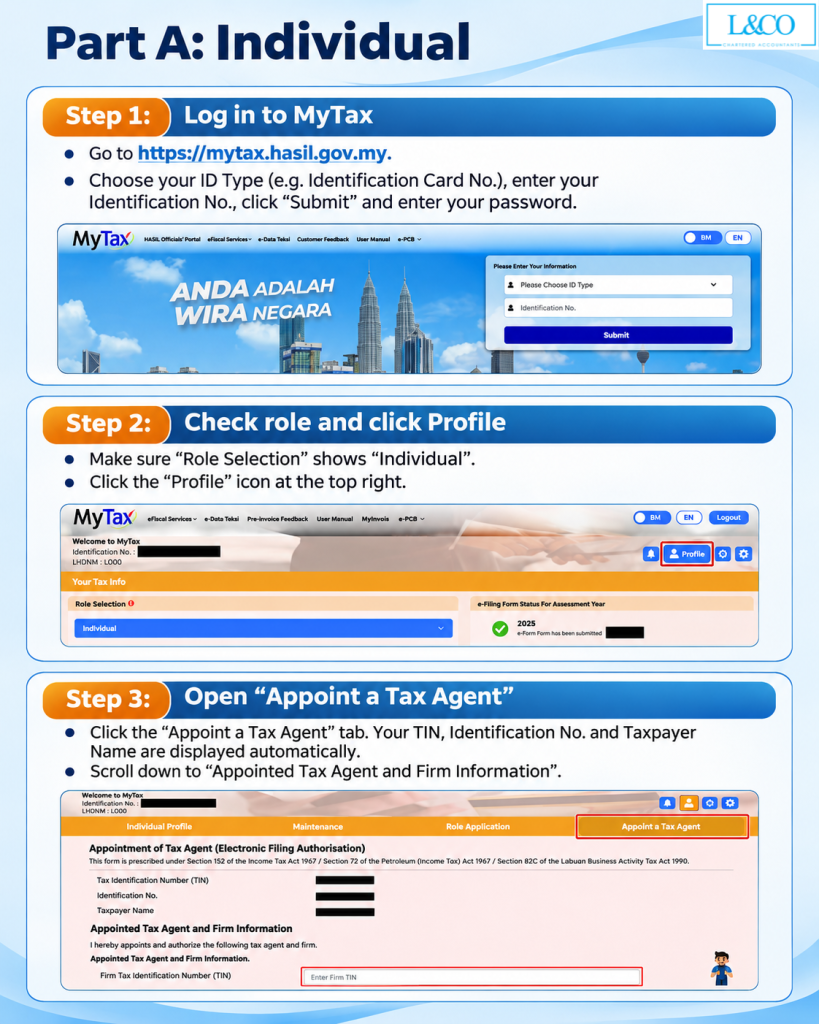
Step 1: Log in to MyTax
Visit the official MyTax portal at https://mytax.hasil.gov.my.
Select your ID Type (e.g. Identification Card Number), enter your Identification Number, click “Submit”, and proceed to log in using your password.
Step 2: Verify Your Role and Access Profile
After logging in, ensure that “Role Selection” displays “Individual”.
Click the “Profile” icon located at the top right corner of the MyTax dashboard.
Step 3: Access Appoint a Tax Agent
Under the Profile section, select “Appoint a Tax Agent”.
The system will automatically display your Tax Identification Number (TIN), Identification Number and Taxpayer Name.
Scroll down to “Appointed Tax Agent and Firm Information” to proceed with the appointment.
Part A: Individual Taxpayers
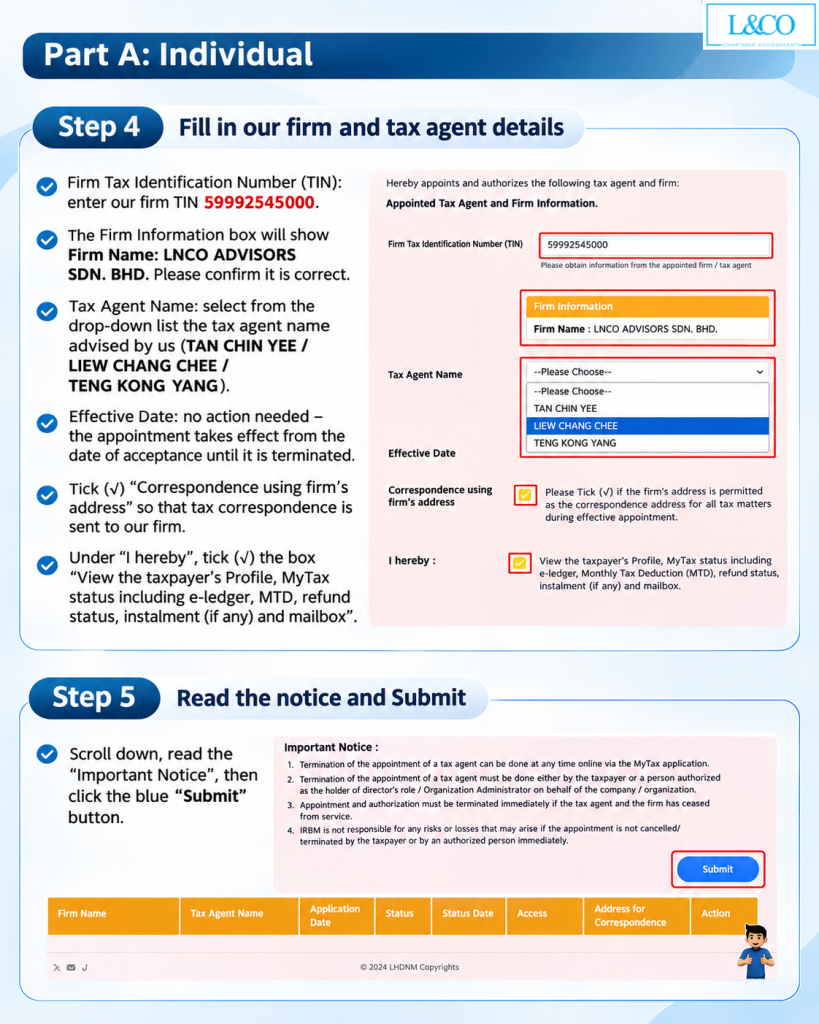
Step 4: Enter Our Firm and Tax Agent Details
Under “Firm Tax Identification Number (TIN)”, enter our firm’s TIN: 59992545000
The system will automatically display the Firm Name, LNCO ADVISORS SDN. BHD. Verify that the information is correct.
Next, select the designated Tax Agent Name from the drop-down list, as advised by our team.
The Effective Date does not require manual entry. The appointment will take effect once accepted by the appointed tax agent.
Where applicable and with your consent, tick the relevant authorisation options:
Correspondence using firm’s address
View the taxpayer’s Profile, MyTax status including e-ledger, MTD, refund status, instalment (if any) and mailbox: Authorises access to the specified taxpayer information and tax records.
Step 5: Review the Important Notice and Submit
Part A: Individual Taxpayers
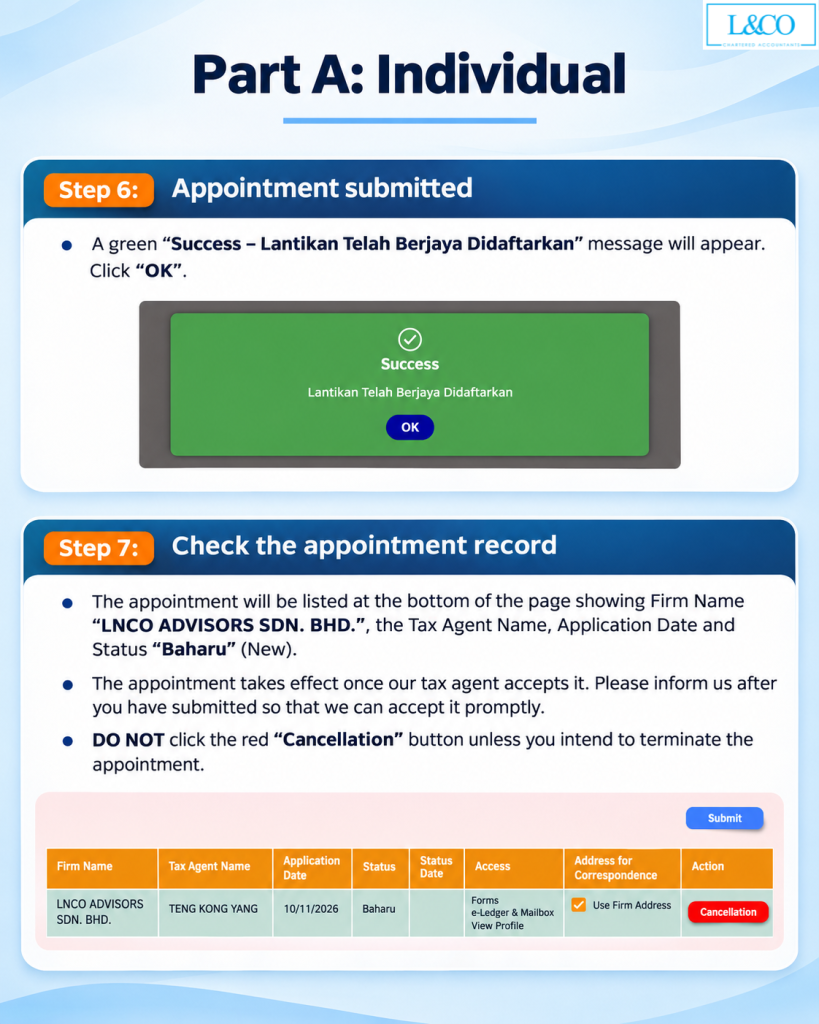
Step 6: Confirm Successful Submission
Once submitted, a green confirmation message will appear:
“Success – Lantikan Telah Berjaya Didaftarkan”
This indicates that the tax agent appointment has been successfully registered in the system.
Click “OK” to continue.
Step 7: Check Your Appointment Record
The appointment record will appear at the bottom of the page, displaying:
- Firm Name
- Tax Agent Name
- Application Date
- Appointment Status
A status of “Baharu” (New) indicates that the appointment has been submitted and is awaiting acceptance by the tax agent.
Please inform our team once you have submitted your appointment so that we can proceed with the acceptance promptly.
Part B: Private Limited Companies (Sdn. Bhd.)
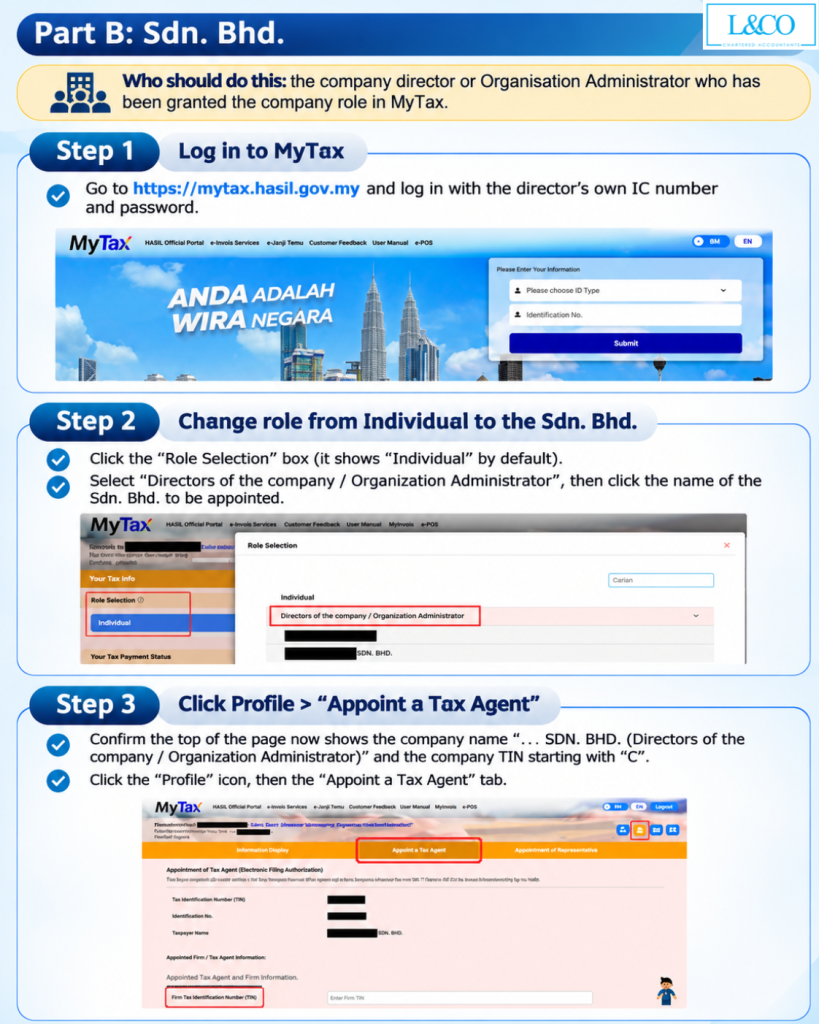
For private limited companies, the appointment must be completed by a company director or Organization Administrator who has been granted the relevant company role in MyTax.
Step 1: Log in to MyTax
Visit https://mytax.hasil.gov.my.
The company director or Organisation Administrator must log in using their own IC number and MyTax password.
Step 2: Switch from Individual to Company Role
After logging in, click “Role Selection”, which typically displays “Individual” by default.
Select “Directors of the company / Organization Administrator”, followed by the name of the Sdn. Bhd. for which the tax agent appointment is required.
Step 3: Access Appoint a Tax Agent
Verify that the selected company name and its Tax Identification Number (TIN), beginning with “C”, are displayed correctly.
Click “Profile”, followed by “Appoint a Tax Agent” to access the appointment form.
Part B: Private Limited Companies (Sdn. Bhd.)
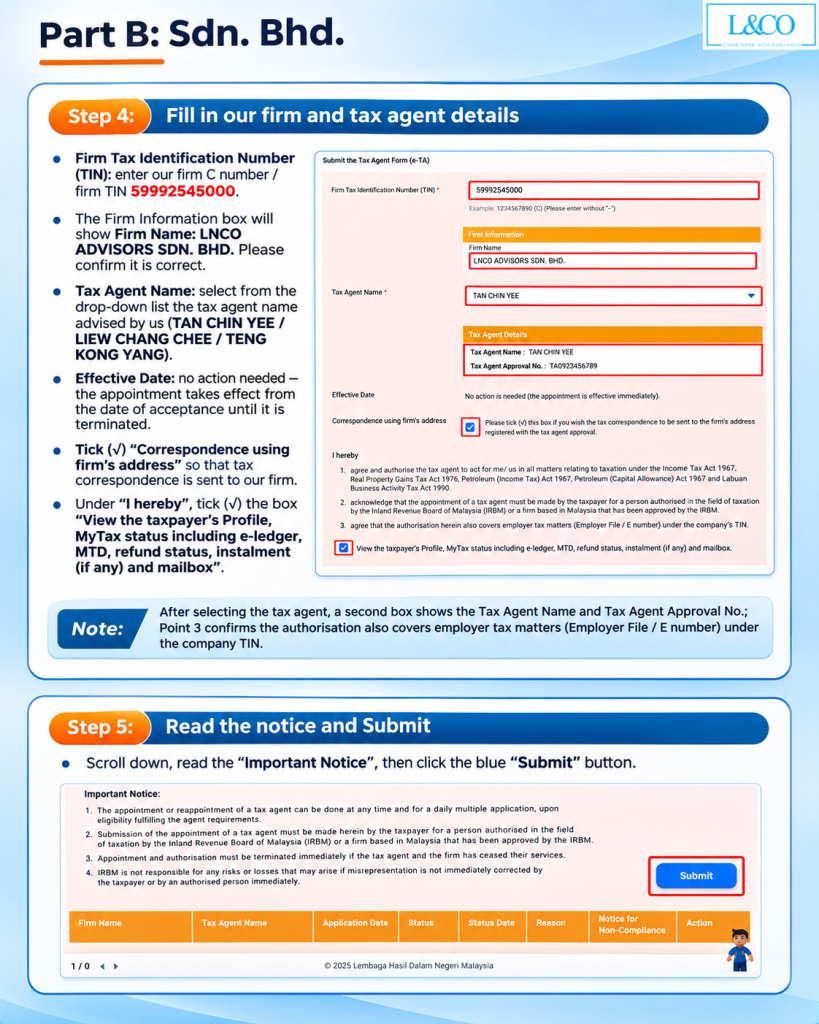
Step 4: Fill in Our Firm and Tax Agent Details
Enter our Firm Tax Identification Number (TIN): 59992545000
Firm Name: LNCO ADVISORS SDN. BHD.
Verify the firm’s details and select the designated Tax Agent Name from the drop-down list.
The Effective Date will be determined based on the tax agent’s acceptance.
Review and select the relevant authorisation options, including:
Correspondence using firm’s address
View the taxpayer’s Profile, MyTax status including e-ledger, MTD, refund status, instalment (if any) and mailbox
Additional Note: After selecting the tax agent, the system will display the Tax Agent Name and Tax Agent Approval Number. Please verify these details and review the authorisation scope, including any applicable employer tax matters under the company’s Employer File / E Number.
Step 5: Review and Submit the Appointment
Carefully read the “Important Notice” and review the information entered.
Once all details and authorisations have been confirmed, click the blue “Submit” button.
Part B: Private Limited Companies (Sdn. Bhd.)
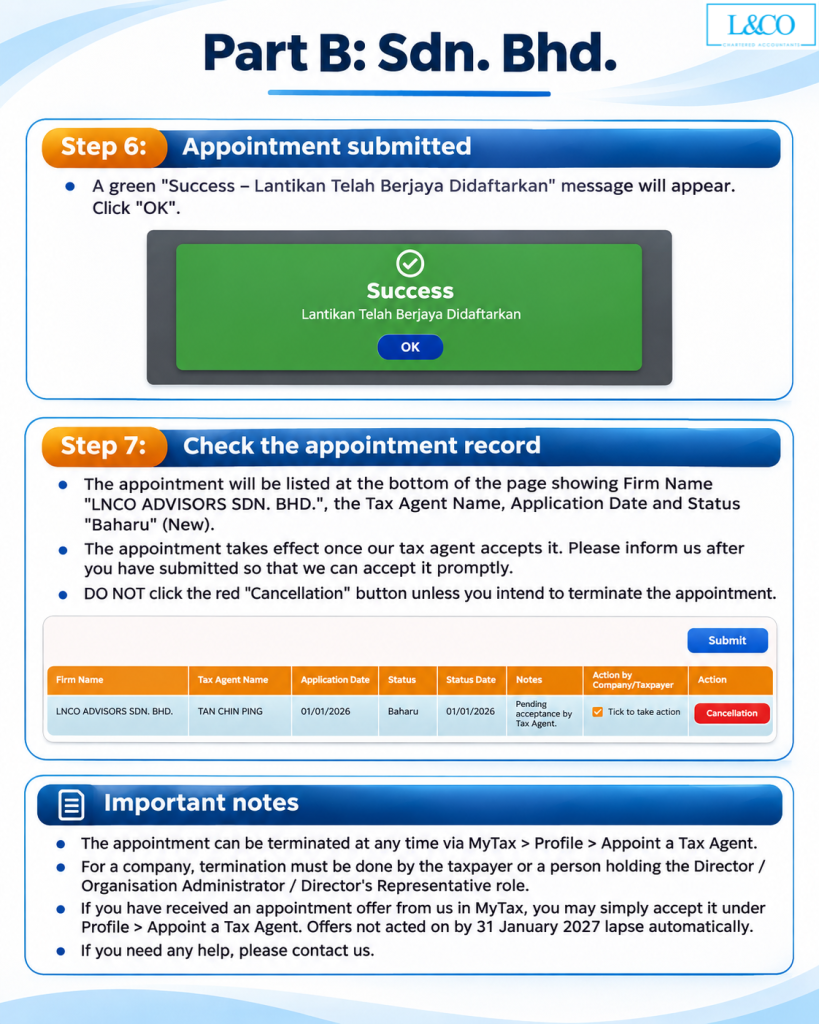
Step 6: Confirm Successful Submission
A green confirmation message will appear:
“Success – Lantikan Telah Berjaya Didaftarkan”
Step 7: Verify the Appointment Record
The appointment record will appear at the bottom of the page, showing the firm’s name, selected tax agent, application date and appointment status.
If the status displays “Baharu” (New), the appointment has been submitted and is awaiting acceptance.
Please notify our team after submission so that we can proceed with the acceptance.
Important: Do not click the red “Cancellation” button unless you intend to terminate the appointment.
Important Notes
- Termination of Appointment: Taxpayers may terminate a tax agent appointment via MyTax > Profile > Appoint a Tax Agent.
- Company Appointment: For companies, termination must be carried out by an authorised director, Organisation Administrator, or authorised representative with the appropriate access rights.
- Appointment Invitation: If you have received a tax agent appointment invitation from our firm via MyTax, you may accept it directly through the relevant page.
- Invitation Validity: Under the transitional arrangements outlined in this guide, relevant appointment invitations that are not accepted by 31 January 2027 will automatically expire.